
What is the difference between CTI mode and softphone mode?
Softphone modeI
If you don’t have your own deskphone in the office, you can set Linkus to Softphone mode. With Linkus softphone, you can directly make and receive calls on Linkus Desktop Client without having to configure a deskphone separately.
CTI mode
If you are used to handling calls on a deskphone, you can set Linkus to CTI mode, and control phone calls on Linkus Desktop Client, such as dialing, call hold, call recording and so on.
Thanks to Yeastar CTI, you don’t have to spend time saving contacts information on deskphone or manually enter phone number on deskphone when you’re trying to make a call. The integrated Linkus Directory, select & dial with hotkey feature, and Yeastar Click to Call feature allow quick search for and dialing to contacts. Yeastar CTI mode not only simplifies call operations, but also caters for your deskphone experience.
Linkus Client requirements
| Linkus Windows Desktop | 1.10.3 or later |
| Linkus Mac Desktop | 1.10.3 or later |
Phone requirements
Prepare an analog phone or IP phone that you need to control by Linkus. The phone should meet the following requirements:
- Analog phone
- Use the same extension as Linkus Desktop Client.
- IP phone
- Use the same extension as Linkus Desktop Client
- Register ONLY one account on the IP phone, or the Yeastar CTI may not work.
What operations can I do to control a phone by Linkus?
The supported operations in Yeastar CTI mode
| Operations | Compatible Yealink/Fanvil IP phones | Other IP phones/analog phones |
|---|---|---|
| Make/End a call | ✓ | ✓ |
| Reject a call | ✓ | ✓ |
| Hold/Retrieve a call | ✓ | ✓ |
| Blind transfer | ✓ | ✓ |
| Record a call | ✓ | ✓ |
| * Answer a call | ✓ | × |
| * Attended transfer | ✓ | × |
| * Swap hold | ✓ | × |
| * Do Not Disturb Synchronization | ✓ | × |
Note: To do the above operations with *, the administrator must do as follows:
- Enable uaCSTA feature on PBX (Path: Settings > PBX > General > SIP > Advanced > Enable uaCSTA connection).
- Enable uaCSTA feature on IP phones.
- If the administrator uses PBX’s auto provisioning to configure IP phones, the uaCSTA feature of IP phones will be enabled automatically.
- If the administrator manually configures IP phones, the administrator should log in to the web pages of IP phones to enable uaCSTA feature.
- How to enable uaCSTA feature of Yealink IP phones?
- How to enable uaCSTA feature of Fanvil IP phones?
Compatible Yealink IP phones
| Yealink phone models | Firmware version |
|---|---|
| SIP-T21P_E2 | 52.84.0.125 or later |
| SIP-T21_E2 | 52.84.0.125 or later |
| SIP-T23P | 44.84.0.125 or later |
| SIP-T23G | 44.84.0.125 or later |
| SIP-T27G | 69.84.0.125 or later |
| SIP-T29G | 46.83.0.120 or later |
| SIP-T40P | 54.84.0.125 or later |
| SIP-T40G | 76.84.0.125 or later |
| SIP-T41S | 66.84.0.125 or later |
| SIP-T41P | 36.83.0.120 or later |
| SIP-T42S | 66.84.0.125 or later |
| SIP-T42G | 29.83.0.120 or later |
| SIP-T46S | 66.84.0.125 or later |
| SIP-T46G | 28.83.0.120 or later |
| SIP-T48S | 66.84.0.125 or later |
| SIP-T48G | 35.83.0.120 or later |
| SIP-T41U | 108.84.0.119 or later |
| SIP-T42U | 108.84.0.119 or later |
| SIP-T43U | 108.84.0.119 or later |
| SIP-T46U | 108.84.0.119 or later |
| SIP-T48U | 108.84.0.119 or later |
| SIP-T52S | 70.84.0.70 or later |
| SIP-T54S | 70.84.0.70 or later |
| SIP-T53 | 95.84.0.125 or later |
| SIP-T53W | 95.84.0.125 or later |
| SIP-T54W | 96.84.0.125 or later |
| SIP-T57W | 97.84.0.125 or later |
| SIP-T56A | 58.83.0.15 or later |
| SIP-T58A | 58.84.0.20 or later |
| SIP-VP59 | 91.283.0.40 or later |
Compatible Fanvil IP phones
| Fanvil phone models | Firmware version |
|---|---|
| X1/ X1P | 2.12.0 or later |
| X1S/ X1SP | 2.0.0 or later |
| X1SG | 2.0.0 or later |
| X2P | 2.12.0 or later |
| X2C | 2.12.0 or later |
| X3S/ X3SP/ X3G | 2.12.0 or later |
| X3SG | 2.0.0 or later |
| X3U | 2.0.0 or later |
| X4/ X4G | 2.12.0 or later |
| X4U | 2.0.3 or later |
| X5U | 2.0.3 or later |
| X5S | 2.0.3 or later |
| X6 | 2.0.3 or later |
| X6U | 2.0.3 or later |
| X7 | 2.0.3 or later |
| X7C | 2.0.3 or later |
| X210 | 2.0.3 or later |
| X210i | 2.0.3 or later |
How to enable Yeastar CTI?
Before you begin
Before enabling Yeastar CTI, make sure the requirements for PBX, Linkus clients, and phones are met.
Procedure
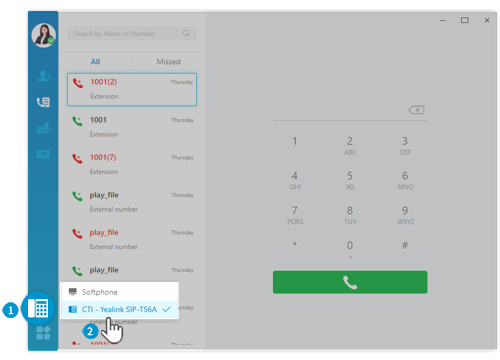
- Click
 .
. - Select a CTI mode.With Yeastar CTI enabled, you can operate on Linkus Desktop Client, and control call operations of deskphone, such as dialing, call hold, recording and so on.
How to enable uaCSTA feature of Yealink IP phones?
Prerequisite
Before enabling uaCSTA feature of Yealink IP phones, you should turn on uaCSTA connection on PBX, so that you can do all the supported operations.
- Log in to the PBX web page.
- Go to Settings > PBX > General > SIP > Advanced, select the checkbox of Enable uaCSTA connection.
Enable uaCSTA feature by Auto Provisioning
If the administrator uses PBX’s Auto Provisioning to configure a phone, the phone’s uaCSTA feature will be automatically enabled.Note: We recommend you to use Auto Provisioning to configure phones.
- Log in to the PBX web page, and go to Auto Provisioning.
- Click Device List tab.
- Select a phone, and click
 .
. - Configure phone settings according to your needs.
- Click Save.The uaCSTA feature of Yealink IP phone will be automatically enabled.
Enable uaCSTA feature on Phone page
The administrator can log in to phone page to manually enable uaCSTA feature.
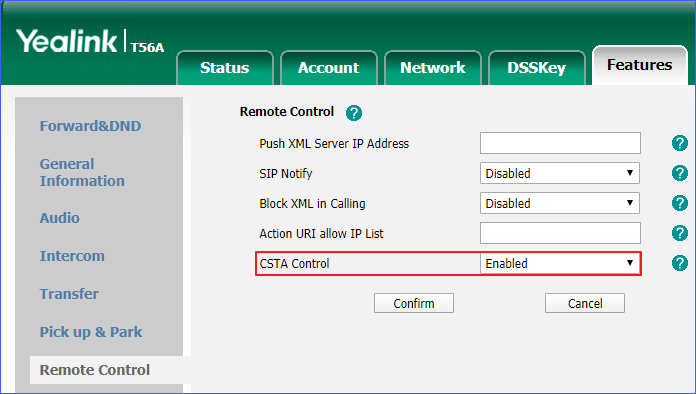
We take Yealink T56A as an example to show you how to enable uaCSTA feature on Yealink IP phone.
- Open web browser, enter the IP phone’s IP address.
- On the pop-up window, enter username and password to access the IP phone.
- Go to Features > Remote Control > CSTA Control.
- Select Enabled.
- Click Confirm.
How to enable uaCSTA feature of Fanvil IP phones?
Prerequisite
Before enabling uaCSTA feature of Fanvil IP phones, you should turn on uaCSTA connection on PBX, so that you can do all the supported operations.
- Log in to the PBX web page.
- Go to Settings > PBX > General > SIP > Advanced, select the checkbox of Enable uaCSTA connection.
Enable uaCSTA feature by Auto Provisioning
If the administrator uses PBX’s Auto Provisioning to configure a phone, the phone’s uaCSTA feature will be automatically enabled.Note: We recommend you to use Auto Provisioning to configure phones.
- Log in to the PBX web page, and go to Auto Provisioning.
- Click Device List tab.
- Select a phone, and click .
- Configure phone settings according to your needs.
- Click Save.The uaCSTA feature of Fanvil IP phone will be automatically enabled.
Enable uaCSTA feature on Phone page
The administrator can log in to phone page to manually enable uaCSTA feature.
We take Fanvil X7 as an example to show you how to enable uaCSTA feature on Fanvil IP phone.
- Open web browser, enter the IP phone’s IP address.
- On the pop-up window, enter username and password to access the IP phone.
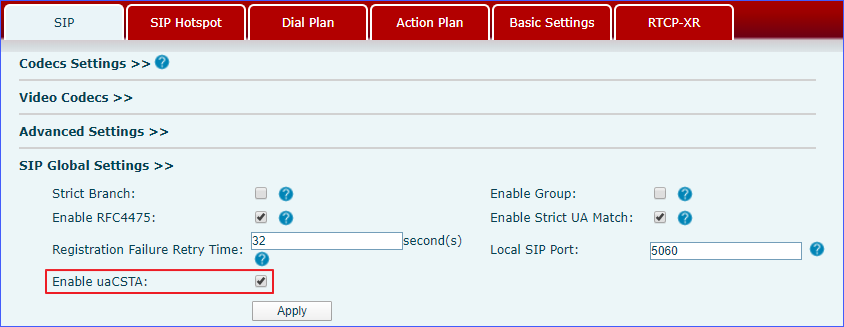
- Enable uaCSTA feature of Fanvil IP phone.
- Go to Line > SIP > SIP Global Settings.
- Select the checkbox of Enable uaCSTA.
- Click Apply.
- Configure uaCSTA feature on Fanvil IP phone.
- Go to Line > SIP > Advanced Settings.
- In the Specific Server Type field, choose COMMON.
- In the textbox of uaCSTA Number, enter the extension number which will be applied in CTI mode.
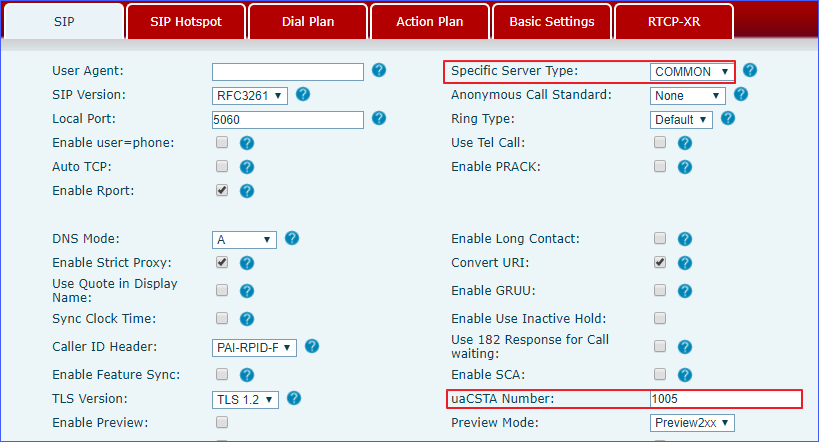
5. Click Apply.
Why can’t I see CTI option?
If you don’t see CTI option on Linkus Desktop Client, you should check the following settings:
- Check if the version of the PBX server meets the following requirements:
- Yeastar Cloud PBX: 81.13.0.30 or later
- Check if the login extensions on Linkus Desktop Client and IP phone/analog phone are the same.
- Check the status of the IP phone/analog phone (if the phone is rebooting or resetting).
Why can’t I play voicemails and recordings on IP phone?
After you click Play on the IP phone on Voicemails page or Recordings page, if the IP phone doesn’t receive a notification, you need to check the following setting:
- Check if the extension’s presence status is set to Do Not Disturb.